QR stickers for laptops, phones and e-readers
Last updated
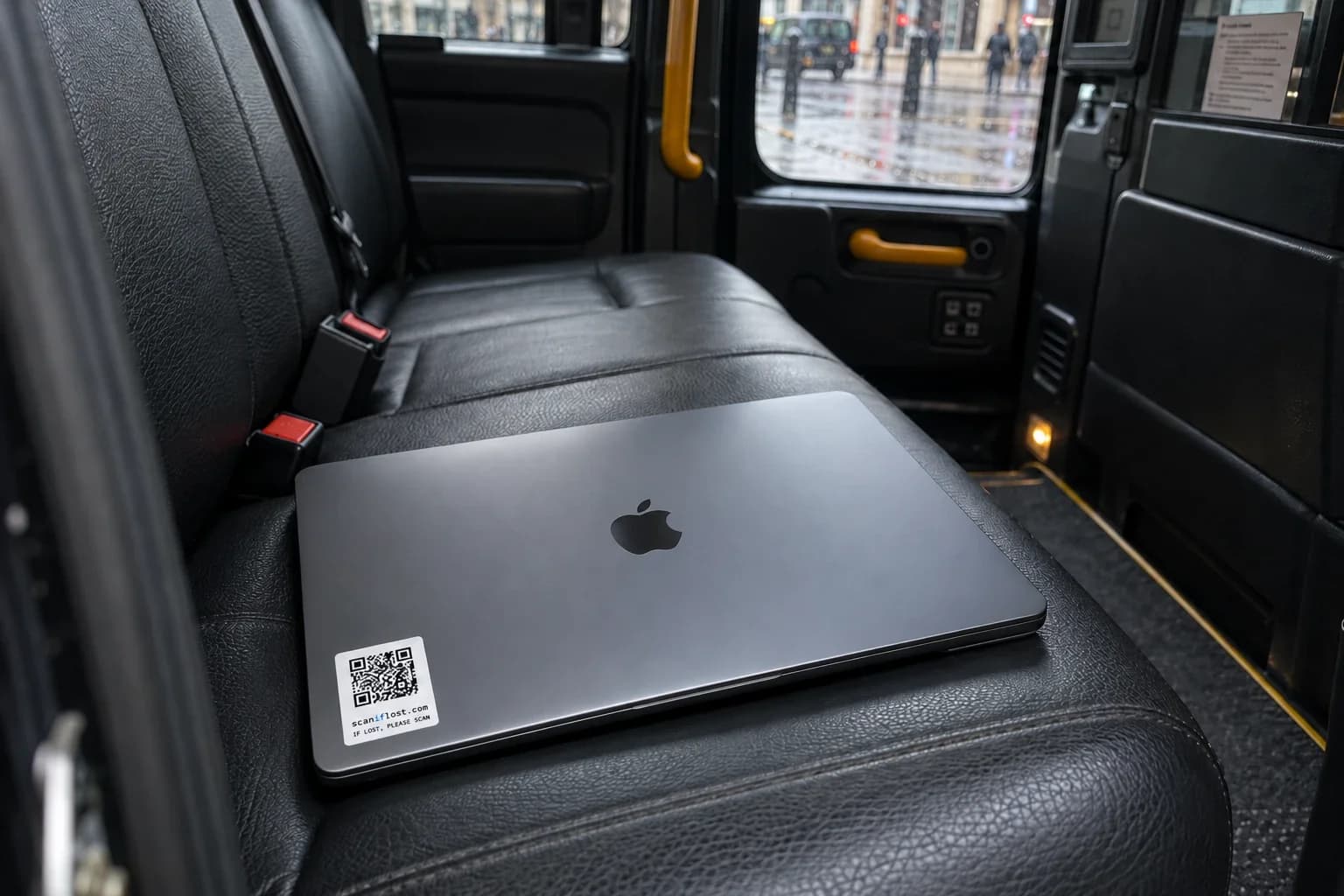
Put a scaniflost QR sticker on the lid or the back. A locked or flat device can't tell a finder whose it is, but the sticker can: they scan it with their own phone and message you, without seeing your contact details.
If you've lost a laptop, phone or tablet
Act on the data first and the device second. A locked device is a nuisance to lose; an account somebody else can get into is a bigger problem.
- 1Lock it remotely. Sign in to your Apple, Google, Microsoft or Samsung account from another device and use its find-and-lock feature to lock the device and put a message with an alternative contact on the lock screen.
- 2Change your important passwords. Start with email, because it can reset everything else, then banking and work accounts. Sign the lost device out of your accounts from their security settings.
- 3Tell work if it's a work device. Your IT team can lock it, revoke its access and, if it comes to that, erase it. Most employers want to hear the same day.
- 4Contact where you lost it. Ring the café, venue, hotel or transport operator's lost property office with the make, model, colour and anything distinctive about the case or stickers.
- 5Report it to your network. For a phone, ask your mobile network to block the SIM so nobody can run up calls or receive your security codes.
- 6Erase it as a last resort. Remote erase protects your data, but on some devices it also stops you locating the device afterwards. Wait until you're sure it isn't coming back.
Before you lose it
- Write down the serial number and keep it with a photo of the device. Lost property offices and repair shops match by it.
- Turn on device encryption, a passcode and the find-and-lock feature while you still have the device in your hands.
- Back it up regularly, so losing the device doesn't mean losing your work or photos.
- Put a sticker on the outside: the lock screen only helps a finder if the battery has some charge left.
Why a locked device needs a sticker
Lock screens are good at keeping strangers out, which also means a finder can't open your laptop to find out whose it is. If the battery's flat, there's nothing to see at all.
A sticker on the outside works whatever state the device is in, and it works on things that have no screen: a camera bag, a water bottle, an instrument case.
What the finder sees
Scanning the sticker opens a page with what the item is (“MacBook” or “Kindle”, whatever you called it), your first name, and a box to write in. You're emailed as soon as they scan it, and again when they send a message.
Good places for a sticker
- The lid of a laptop, near a corner, where it doesn't get covered by a case.
- The back of a phone case or tablet cover.
- The back of an e-reader or its cover.
- Headphone cases, camera bags, water bottles and lunch boxes.
Questions
Can I move a sticker to a new laptop?
A sticker stays where you put it, but the page behind it is yours to change. When you replace a device, rename the code in your dashboard or deactivate it, and stick a fresh one on the new one.
Is a lock screen message enough?
It helps, but only while the device has charge and the finder knows to switch it on. A sticker on the outside works on a flat or broken device, and on cases, bags and accessories that have no screen at all.
Are the stickers waterproof?
They're water and scratch resistant vinyl, so they cope with rain, spills and wiping clean. We don't call them waterproof, because they aren't made to be submerged.